installation
guide
installation
guide
installation
guide
installation
guide
installation
guide
installation
guide
installation
guide
guide
installation
guide
installation
guide
installation
guide
installation
guide
installation
guide
installation
guide
installation

Celebrate Punk
Installation Guide

Set up birthday celebrations, work anniversaries, and departure send-offs for your Slack workspace in minutes.

Prerequisites

Before installing Celebrate Punk, make sure you have the following ready.

HR Punks admin access

You need an admin account on your HR Punks workspace to install apps and configure settings.

Slack workspace admin

Slack requires workspace admin (or owner) privileges to authorize the OAuth consent screen during installation.

A public Slack channel

The bot posts celebrations to a channel you designate. Create one (e.g. #celebrations) or pick an existing public channel.

Installation

Three steps to get Celebrate Punk running in your Slack workspace.

1

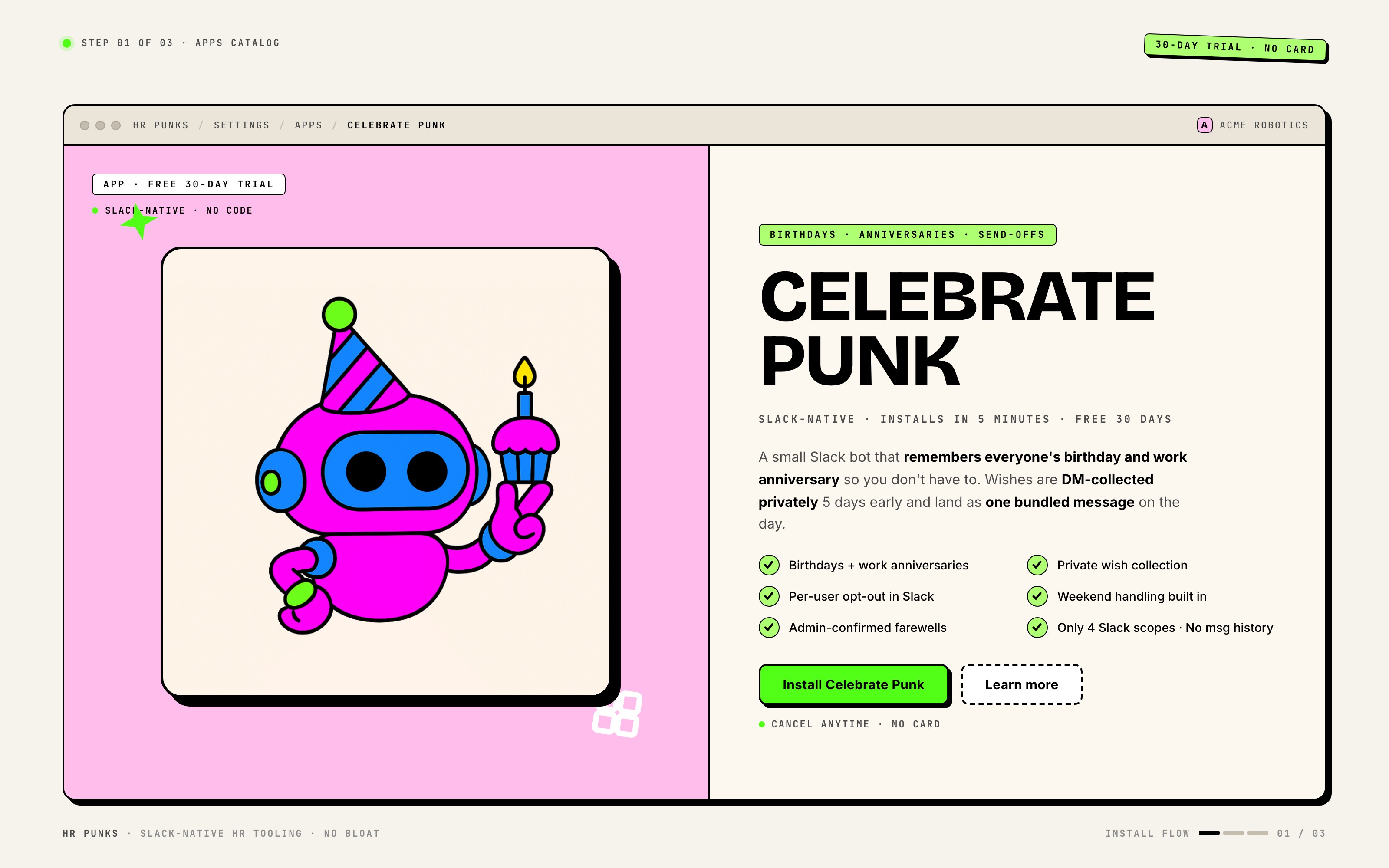
Find Celebrate Punk in the App Catalog

Go to Settings → Apps in your HR Punks dashboard. Find the Celebrate Punk tile and click Install.

You need admin access to your HR Punks workspace. The Apps page lists all available add-ons.

2

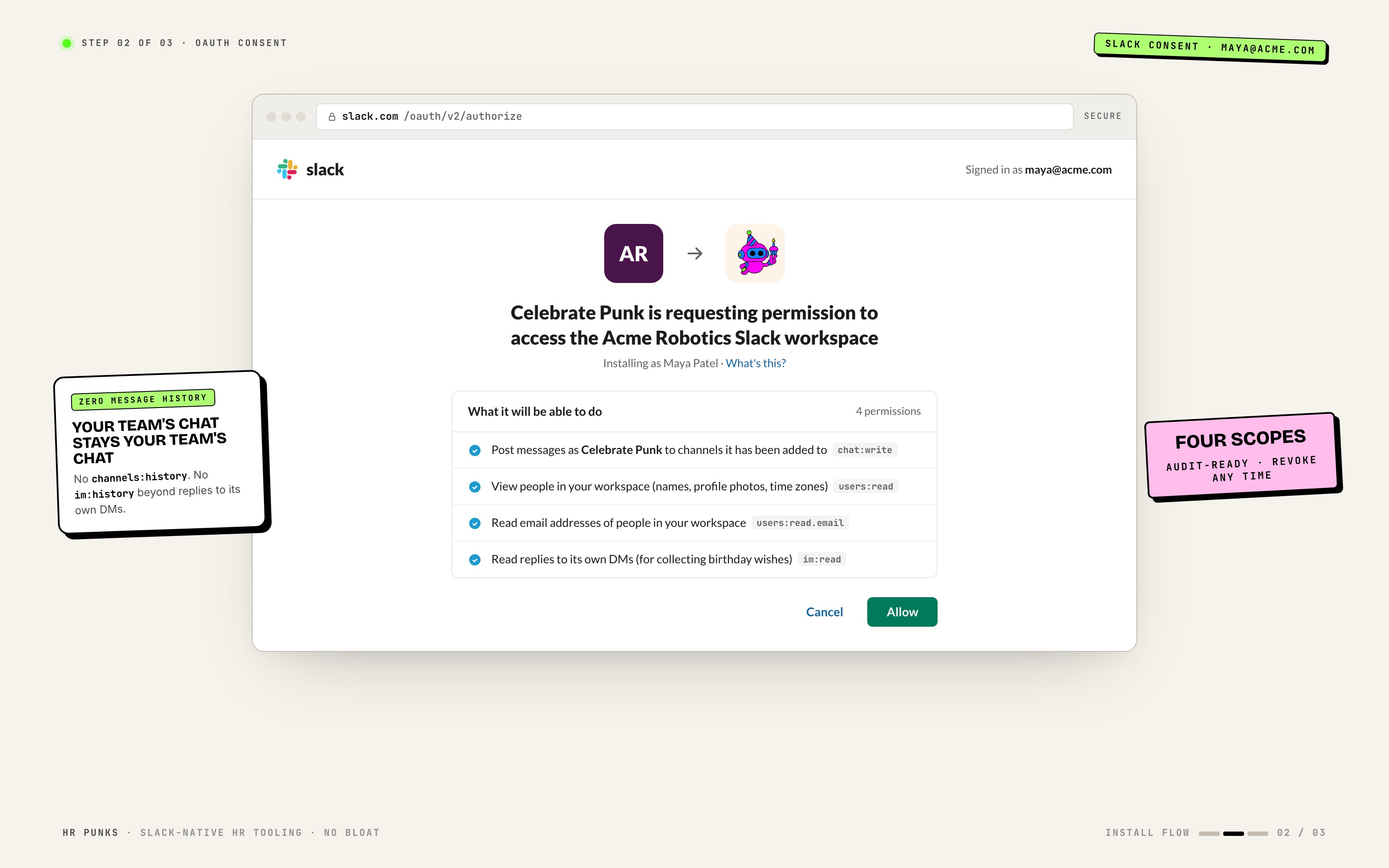
Authorize in Slack

You’ll be redirected to Slack’s OAuth consent screen. Authorize HR Punks to access your workspace.

The bot requests permissions to post messages, read channel lists, and manage its Home tab. No message history access is requested.

3

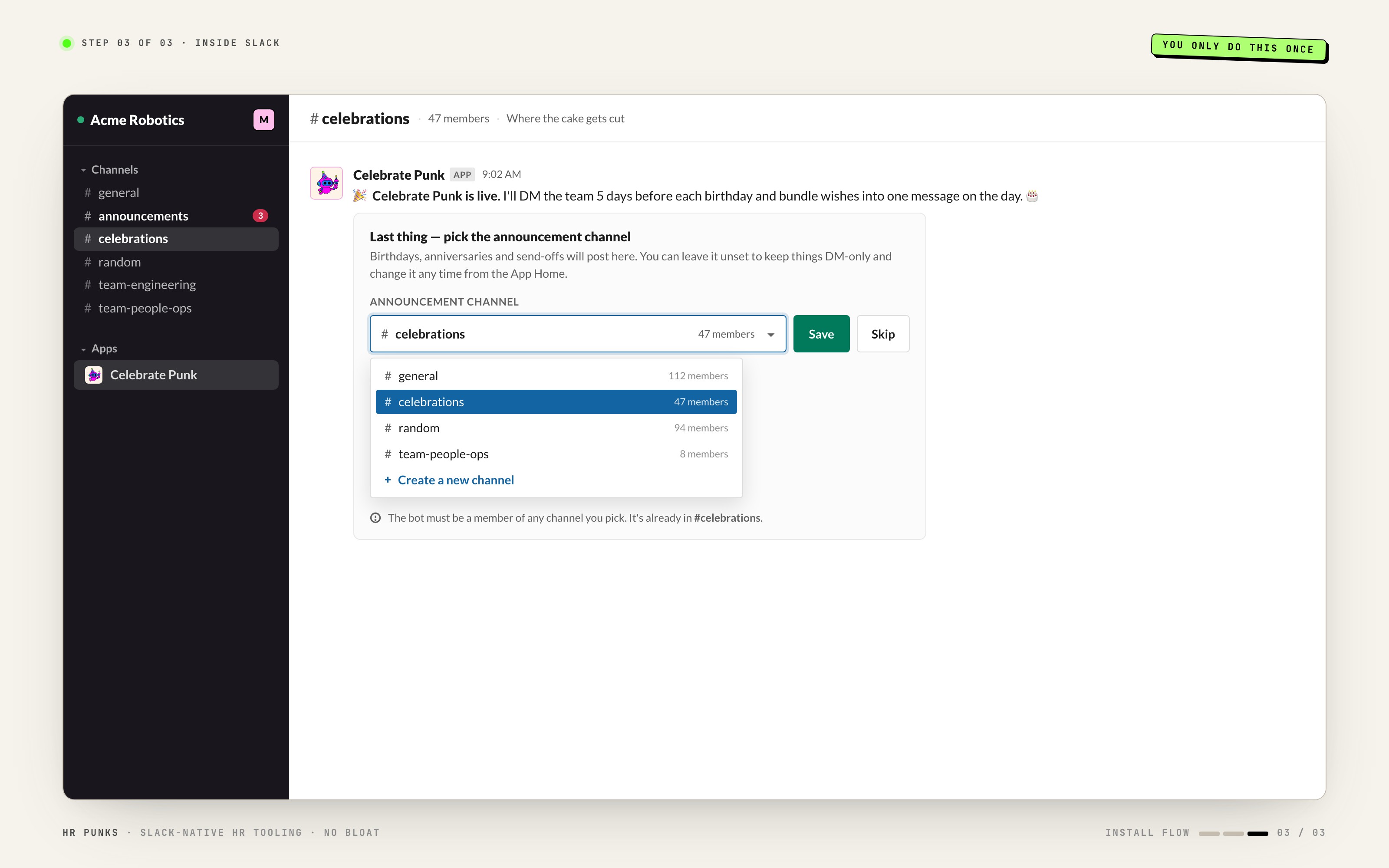
Set your announcement channel

After authorization, you’ll land on the Celebrate Punk dashboard. Go to Settings and pick the Slack channel where celebrations will be posted.

This is the only required step. Nothing fires until a channel is selected. The bot must be a member of the channel you pick.

Initial Setup

Required first step: Select an announcement channel in Settings before anything else. Nothing fires until a channel is set.

Settings Tabs

General10 settings

Channel selection, celebration mode, weekend handling, opt-out policy, wish collection, auto-collect birthdays, and upcoming period.

Anniversaries3 settings

Enable/disable anniversaries, milestone-only mode, and milestone year selection.

Departures1 settings

Enable/disable departure send-offs. Lists pending departures with Confirm and Skip actions. Two-step confirmation prevents accidental public farewells.

Opt-outs

Searchable list of users who opted out of birthday or anniversary celebrations. Admins can toggle opt-outs per user.

Settings Reference

Every setting available in Celebrate Punk, grouped by tab.

Announcement channelSlack channel Default: None (required)general

The Slack channel where birthday and farewell celebrations are posted. The bot must be a member of this channel. This is the only required setting — nothing fires until it’s set.

Anniversary channelSlack channel Default: Same as announcementgeneral

Optional override for anniversary posts. If not set, anniversaries go to the same channel as birthdays.

Celebration modeSelect Default: Public (channel)general

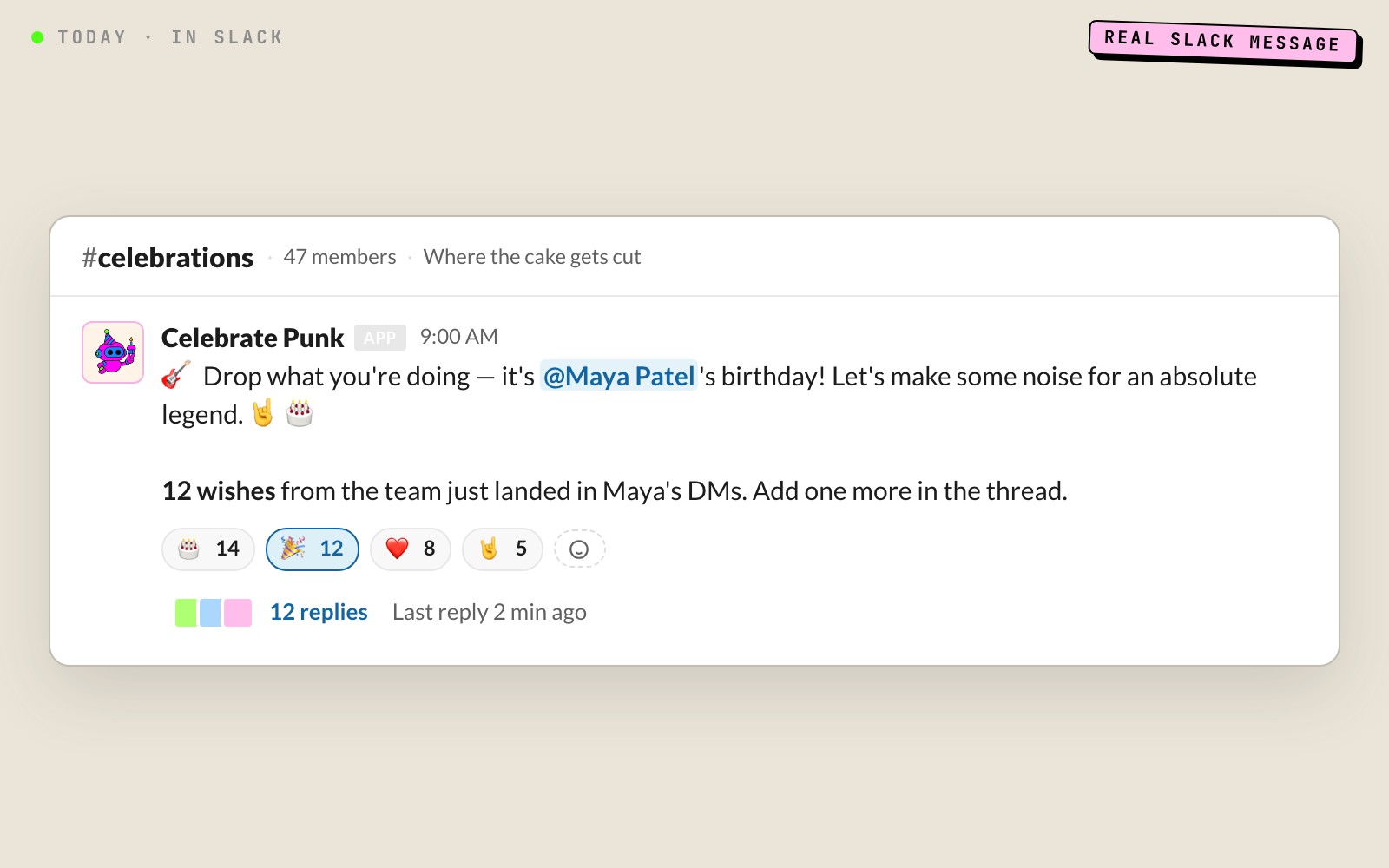
Public posts celebrations to the announcement channel for everyone to see. Private sends a DM only to the person being celebrated.

Public (channel)Private (DM)
Weekend handlingSelect Default: Celebrate Fridaygeneral

When a birthday falls on Saturday or Sunday, this controls when the celebration posts instead.

Celebrate FridayCelebrate MondayActual day
Allow user opt-outToggle Default: Ongeneral

When enabled, each user can opt out of public birthday and anniversary celebrations from the Celebrate Punk Home tab in Slack.

Auto-collect birthdaysToggle Default: Ongeneral

The bot DMs users who don’t have a birthday on file, asking them to add it. Runs automatically — no admin action needed.

Wish collectionToggle Default: Ongeneral

Before each birthday, the bot prompts teammates to write a personal wish. All wishes are compiled and delivered to the birthday person as a single DM on their day.

Wish reminder — days beforeNumber (1–30) Default: 5general

How many days before the birthday the bot starts sending wish-collection reminders.

Wish reminder scopeSelect Default: Everyonegeneral

Controls who receives the wish-collection reminder DM.

EveryoneDirect teammates onlyDon’t remind
Anniversaries enabledToggle Default: Onanniversaries

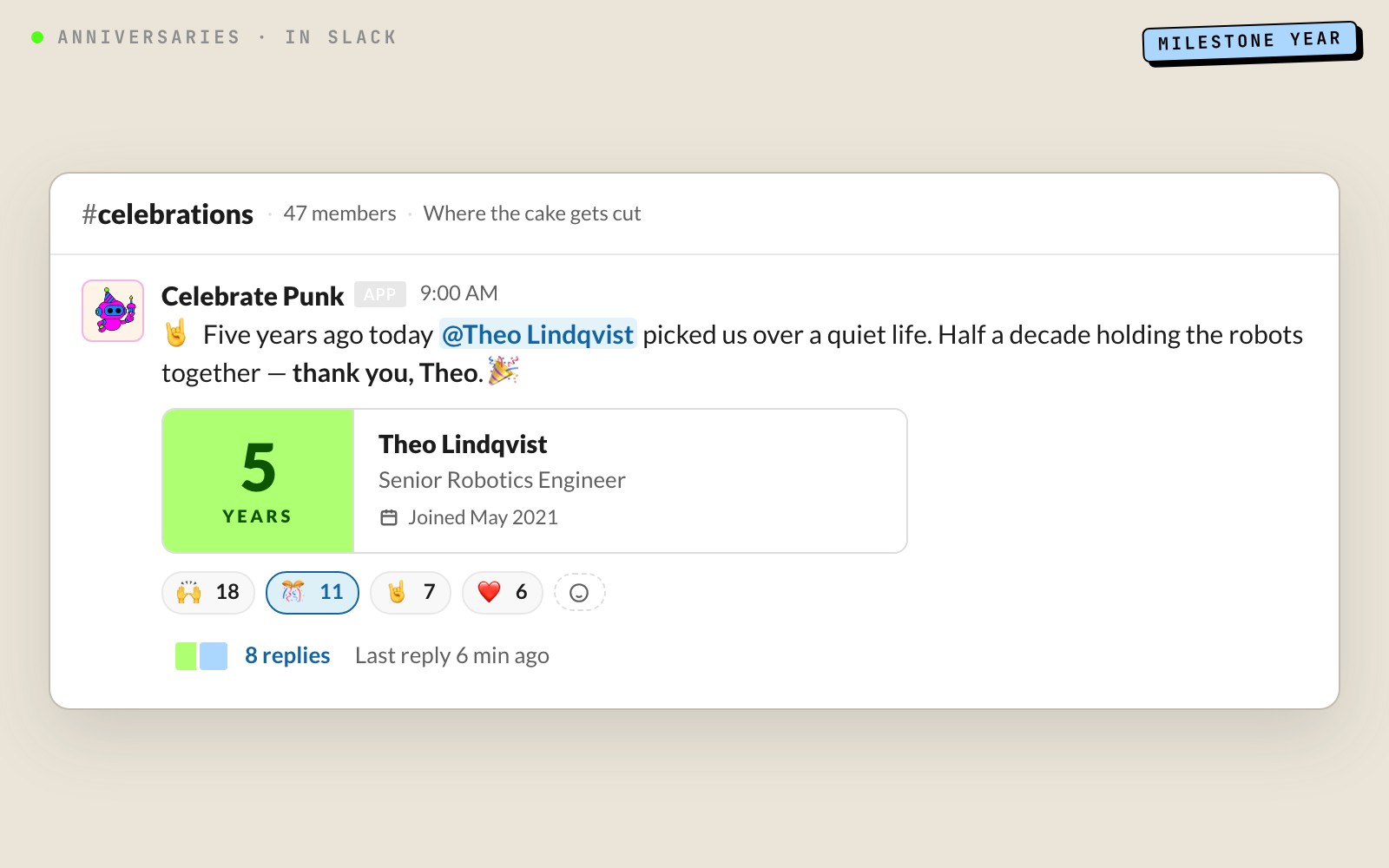
Master switch for work anniversary celebrations. When off, no anniversary posts are sent and the anniversary section is hidden from the Slack Home tab.

Milestone years onlyToggle Default: Offanniversaries

When on, only milestone years (e.g. 1, 3, 5, 10) trigger a celebration post. Non-milestone years are skipped.

Milestone yearsCheckbox group Default: 1, 3, 5, 10, 15, 20, 25anniversaries

Which years count as milestones. The UI offers seven preset years (1, 3, 5, 10, 15, 20, 25). Only applies when ‘Milestone years only’ is on.

Departure send-offsToggle Default: Offdepartures

When a team member’s status changes to inactive (via HR sync or manual update), a pending farewell is created. An admin must confirm before the farewell posts to the announcement channel. The farewell is never automatic — admin approval is always required.

Upcoming preview windowSelect Default: Next 2 weeksgeneral

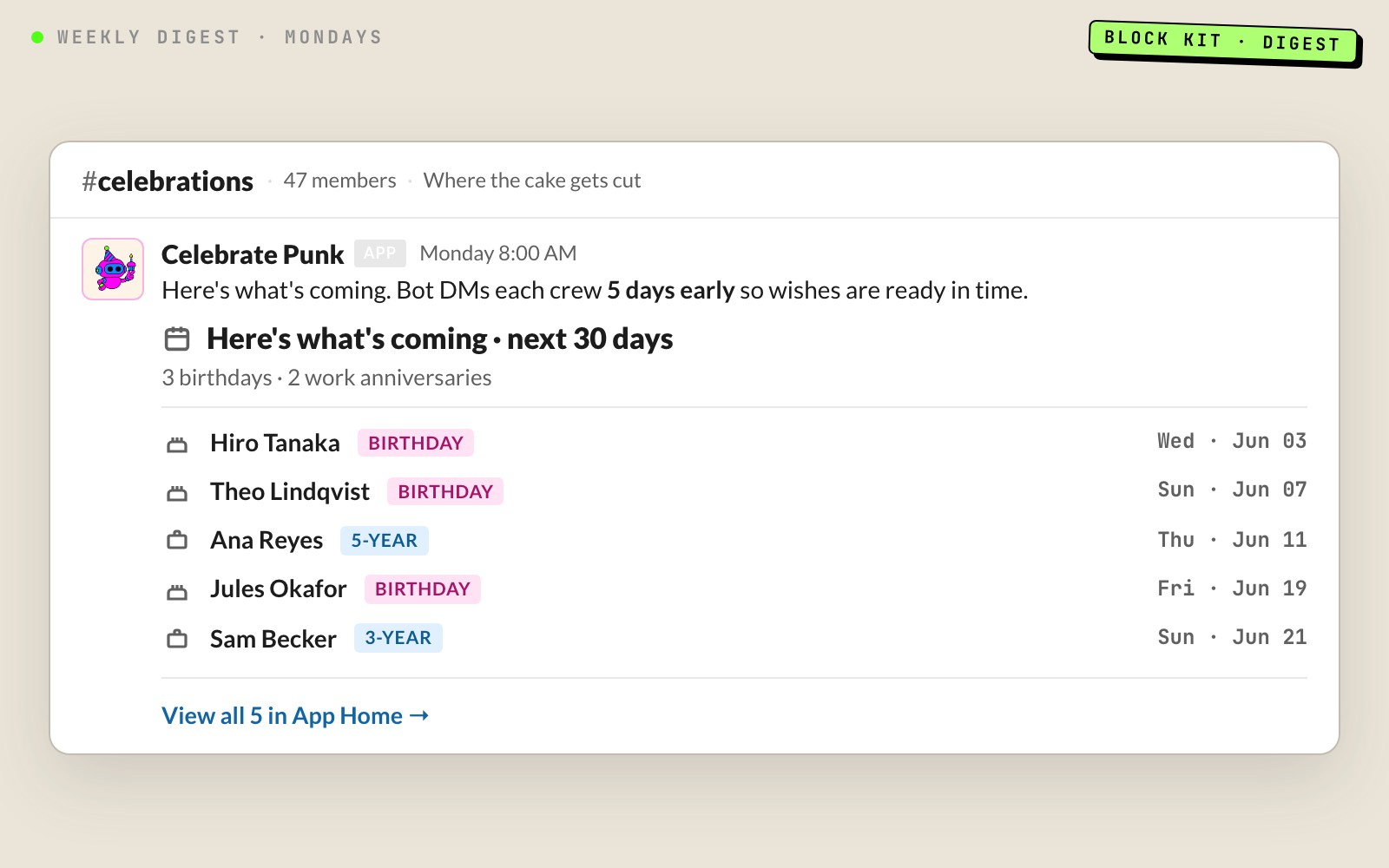
Controls how far ahead the Slack Home tab’s upcoming list and the /celebratepunk upcoming command look. The dashboard has its own adjustable window.

Next weekNext 2 weeksNext 30 days

Slack Experience

Home Tab

The Celebrate Punk Home tab in Slack gives every user quick access to upcoming birthdays, their wishes, opt-out controls, and admin settings.

All users
Your Birthday — Shows your birthday if set, or a "Set My Birthday" button with a date picker if not.
All users
Your Hire Date — Shows your hire date if set, or a "Set My Hire Date" button. Only visible when anniversaries are enabled.
All users
Opt-Out Toggles — Toggle buttons to opt out of public birthday and/or anniversary celebrations. Only visible when the admin has enabled opt-outs.
All users
Birthday Notifications — Configure which upcoming birthdays you want to be notified about.
All users
My Wishes — Lists wishes you’ve sent to upcoming birthday people. Each wish has Edit and Delete buttons.
All users
Upcoming Birthdays — Lists upcoming birthdays with "Send Wish" buttons next to each person (when wish collection is enabled).
All users
Recent Birthdays — Birthdays from the past 7 days.
All users
Upcoming Anniversaries — Upcoming work anniversaries, filtered by milestone settings. Only shown when anniversaries are enabled.
All users
Recent Anniversaries — Work anniversaries from the past 7 days.
All users
Commands — Quick reference of all /celebratepunk slash commands.
Admins only
Admin Controls — Four buttons: Change Channel, Settings (opens settings modal), Send Test Celebrations (preview what posts look like), and Open Web Console (deep-link to HR Punks dashboard).

Slash Commands

Quick commands available to everyone in your workspace.

CommandDescription
/celebratepunk todaySee today’s birthdays and anniversaries
/celebratepunk upcomingSee upcoming birthdays and anniversaries
/celebratepunk recentSee celebrations from the past 7 days
/celebratepunk anniversariesAnniversary-only view
/celebratepunk helpShow the command reference

Wish Collection

The bot collects personal wishes from teammates before each birthday.

1
Bot sends reminders

A configurable number of days before the birthday, the bot DMs teammates asking them to write a personal wish.

2
Teammates write wishes

Each teammate opens a modal, writes their message, and submits. They can edit or delete their wish anytime before the birthday.

3
Wishes delivered

On the birthday, all collected wishes are compiled and delivered to the birthday person as a single private DM.

Data Sources

Multiple ways to get birthday and hire date data into the system.

Self-reported via SlackManual

Users set their own birthday and hire date from the Celebrate Punk Home tab in Slack using "Set My Birthday" and "Set My Hire Date" buttons.

Auto-collect DMsAutomatic

When enabled, the bot DMs users who don’t have a birthday on file, asking them to add it. No admin action needed.

CSV uploadManual

Bulk import via Settings → Users → Upload CSV. Accepts columns: Name, Email, Birthday, Hire date, Team, and more.

Manual entryManual

Add individual users with birthday and hire date via Settings → Users → New User.

Personio integrationAutomatic

Automatic sync from Personio HR platform. Birthdays and hire dates pulled during each sync cycle.

Dashboard

The web dashboard gives admins a bird's-eye view of celebrations, upcoming events, and team engagement.

Today

Shows users with birthdays and anniversaries today. Four stat cards at top: Birthdays today, Anniversaries today, Next 30 days, Opt-outs.

Upcoming

Lists upcoming birthdays grouped by date. Adjustable window: 7, 14, 30, or 60 days. Respects weekend handling setting — if birthdays are shifted to Friday/Monday, they appear on the shifted date.

Anniversaries

Lists upcoming work anniversaries with a "Milestones only" checkbox and adjustable window (30, 60, 90 days). Each entry shows the user’s name, join year, and milestone badge.

Leaderboard (sidebar)

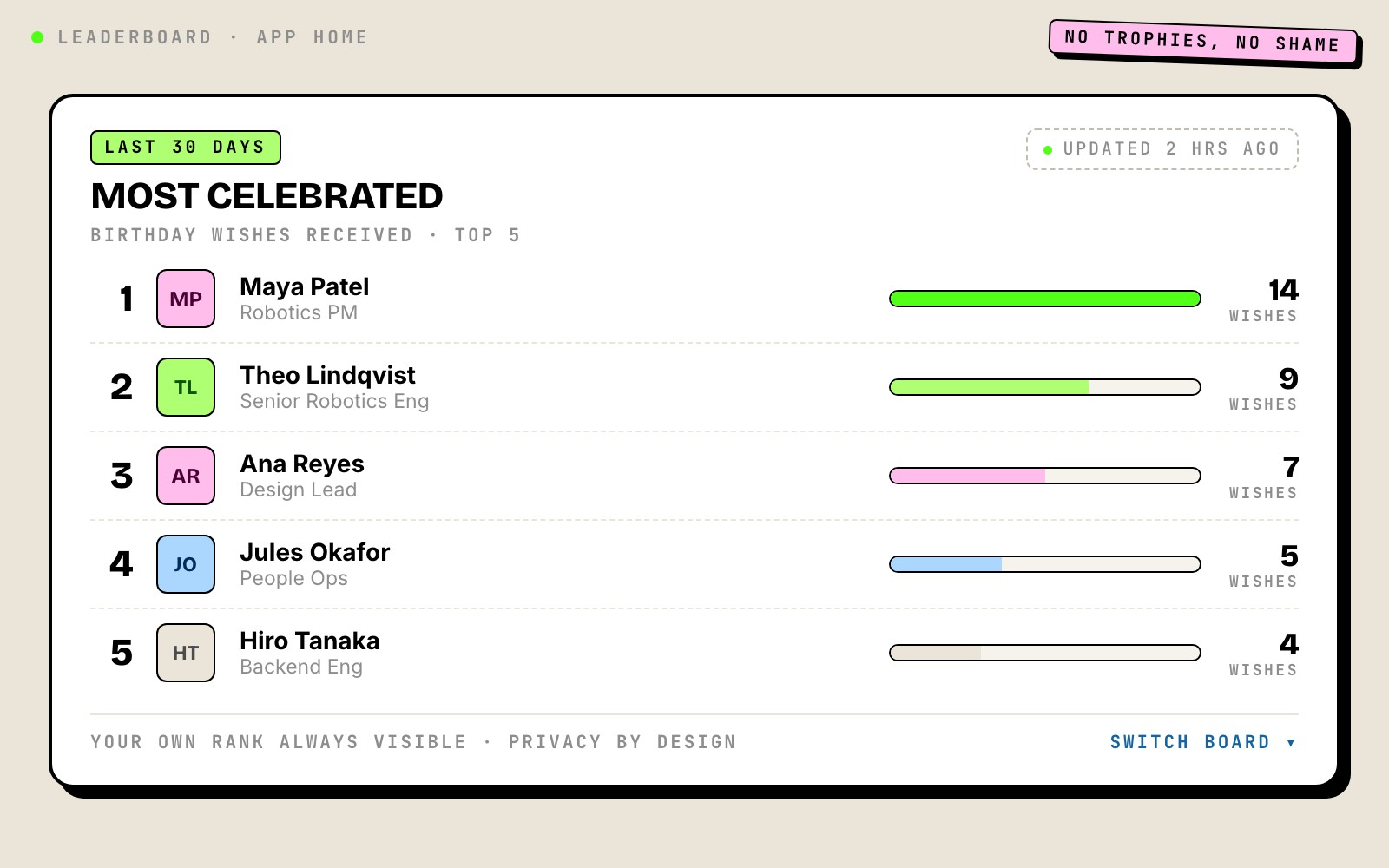
Side panel showing "Most celebrated" — users who received the most wishes. Updates daily at 01:00 UTC. Not a tab — always visible alongside the active tab.

Stat Cards

2
Birthdays today
1
Anniversaries today
8
Next 30 days
0
Opt-outs

FAQ

Messages come from a curated library and are picked deterministically — the same person won’t see the same message repeated within 3 occurrences. There’s no per-tenant message customization by design, which keeps celebrations fresh and prevents brand-voice drift.